
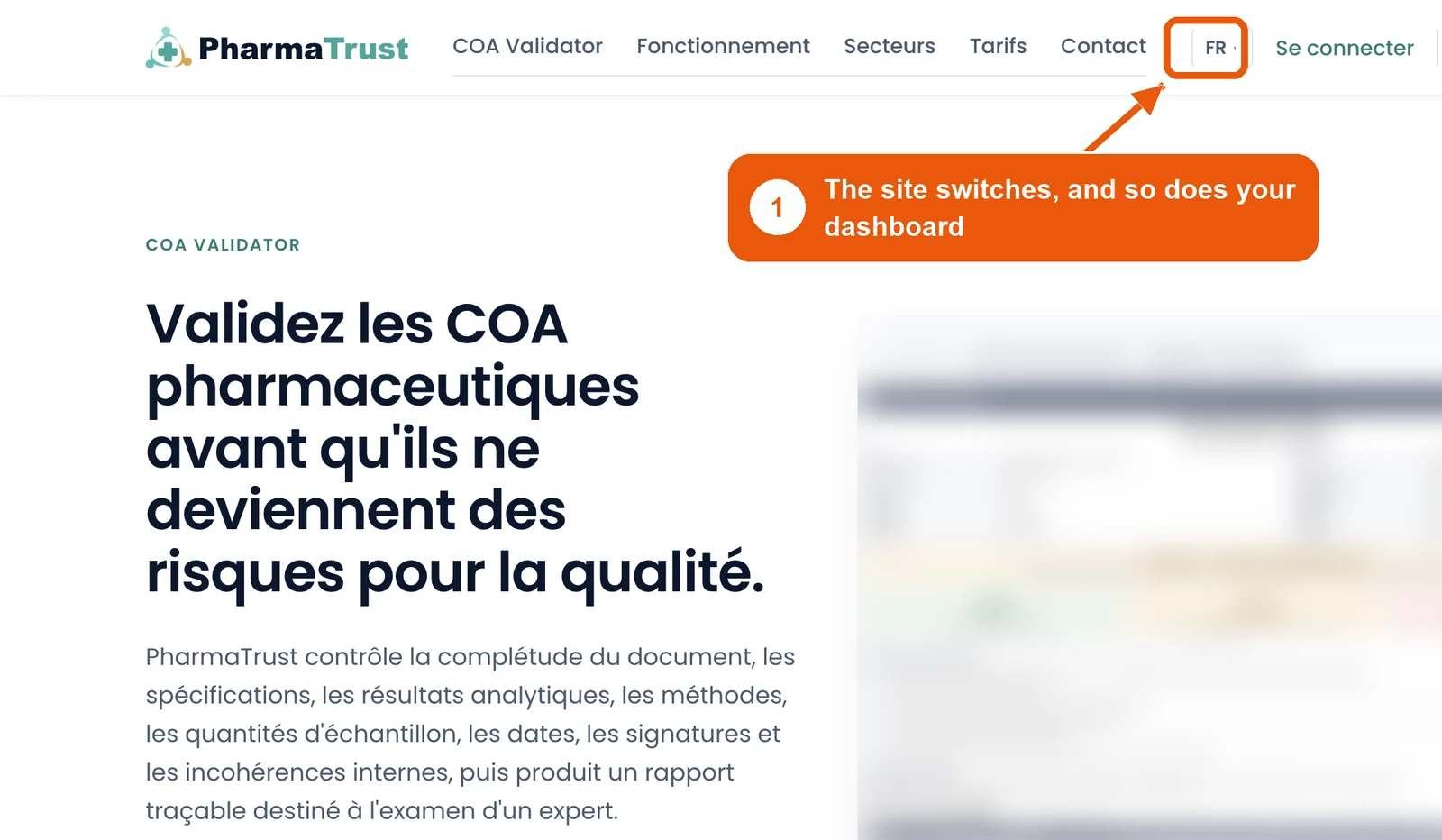
1. Create a free account at pharmatrust.tech (Google or e-mail). 2. Click Upload COA and drop in the certificate. 3. Click Analyze. 4. Read the report and download it as a PDF. That is all. The EN button at the top of the home page or dashboard switches the language, and Need help? at the bottom right is where you tell us what you think.
Before you start
You need an e-mail address (or a Google account) and the certificate you want analysed: a PDF, a scan or a clear photo. Nothing to install.
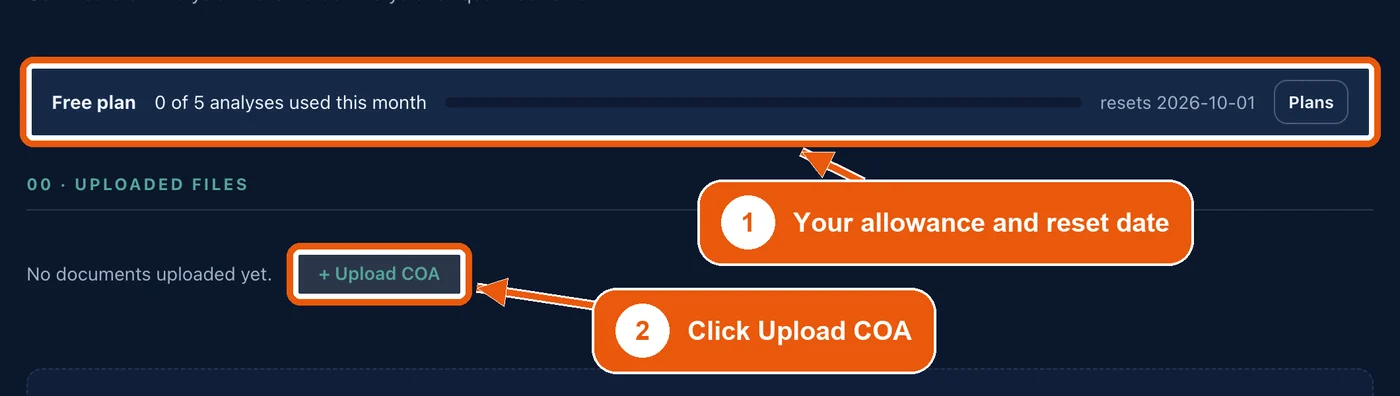
The free plan needs no card: five automated analyses in your first month, then three every month. Uploading is free; only clicking Analyze uses an analysis.
Step 1. Create your free account
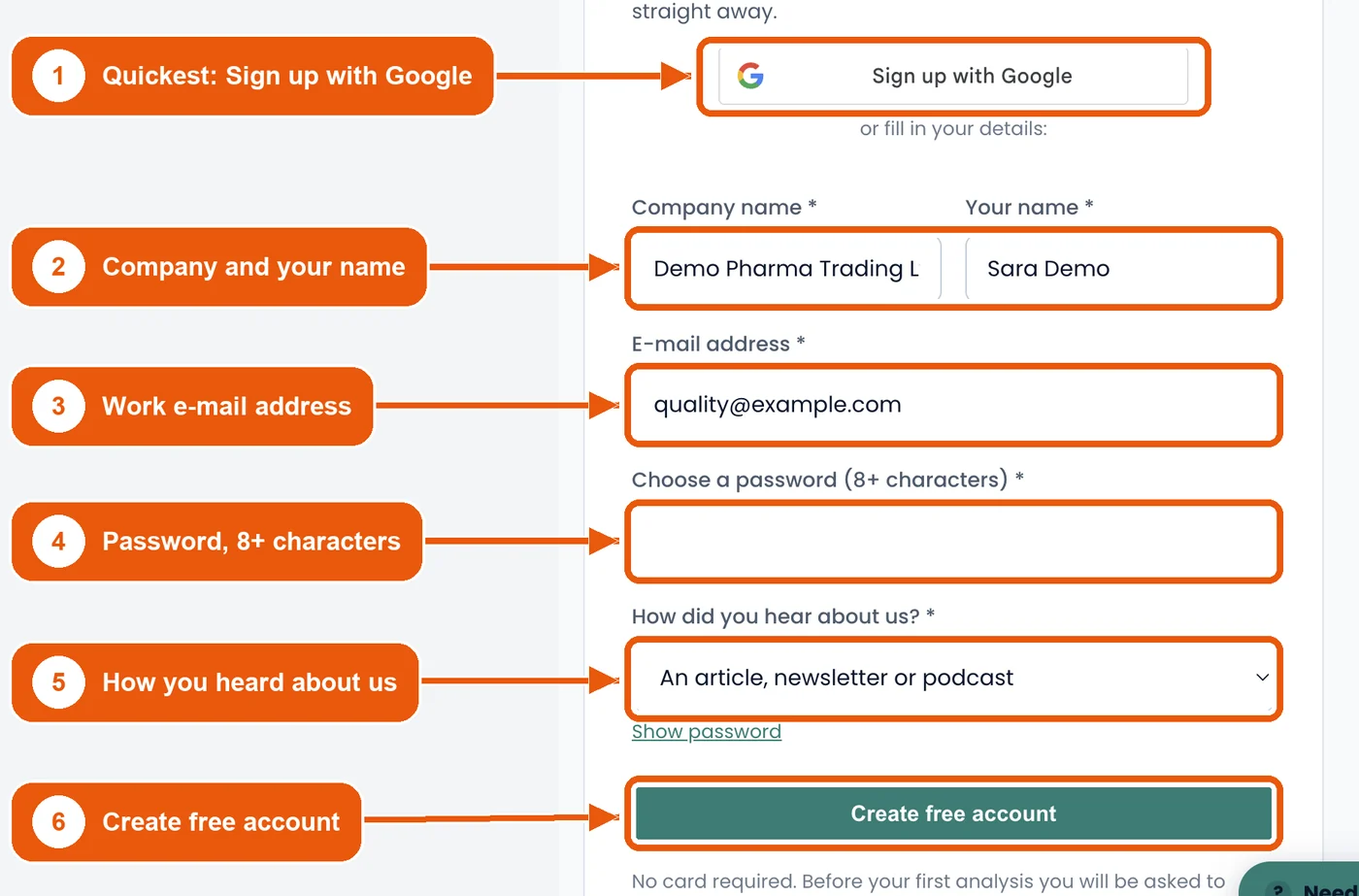
Go to pharmatrust.tech and click Validate a COA free. Then click Sign up with Google (1), or fill in the short form (2 to 5) and click Create free account (6). If you used the form, sign in with your e-mail and password.
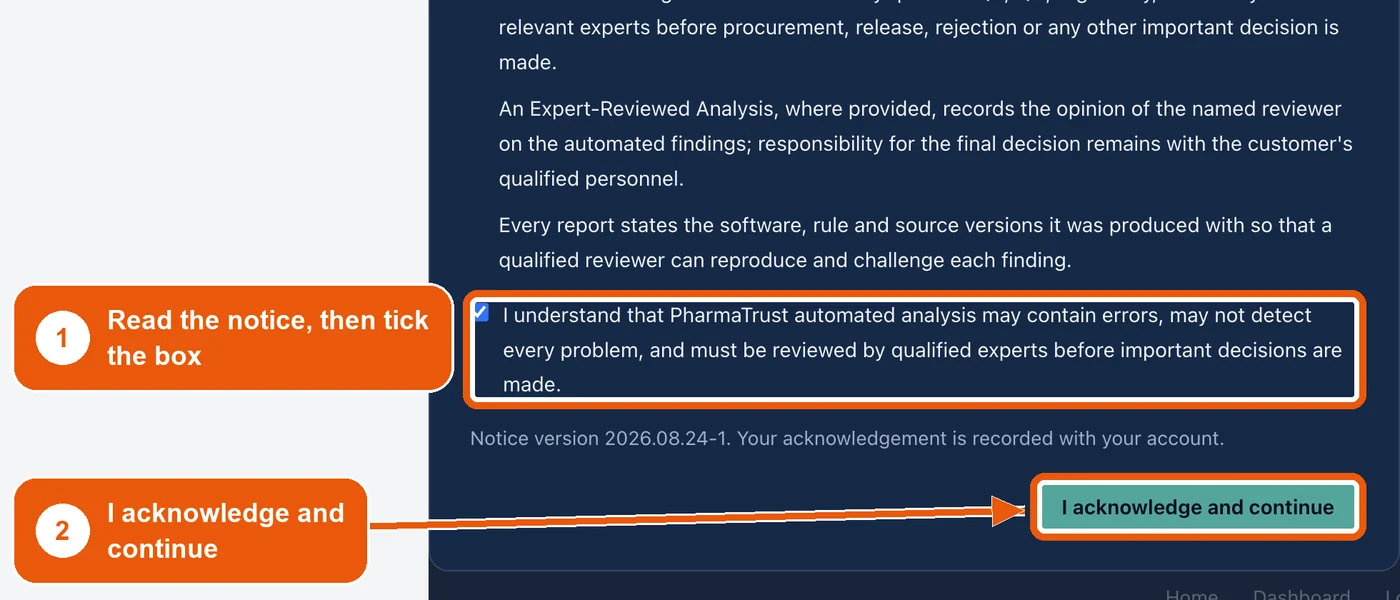
The first time you open your dashboard, a short notice explains that the analysis is decision support for your qualified staff. Tick the box and click I acknowledge and continue. You normally do this once; it comes back only if the notice changes.
Step 2. Upload your certificate
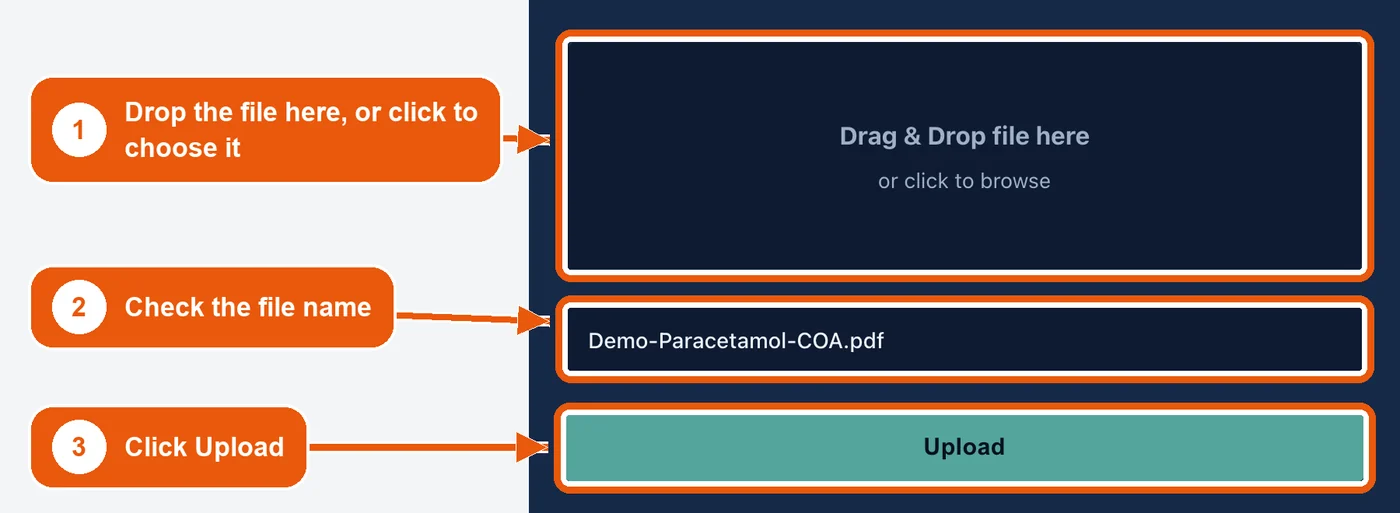
On your dashboard, click Upload COA. Drag the certificate onto the box, or click the box to choose it, then click Upload.
Upload one certificate per file, with all of its pages. For a photo, lay the page flat, in good light and in focus.
Step 3. Click Analyze
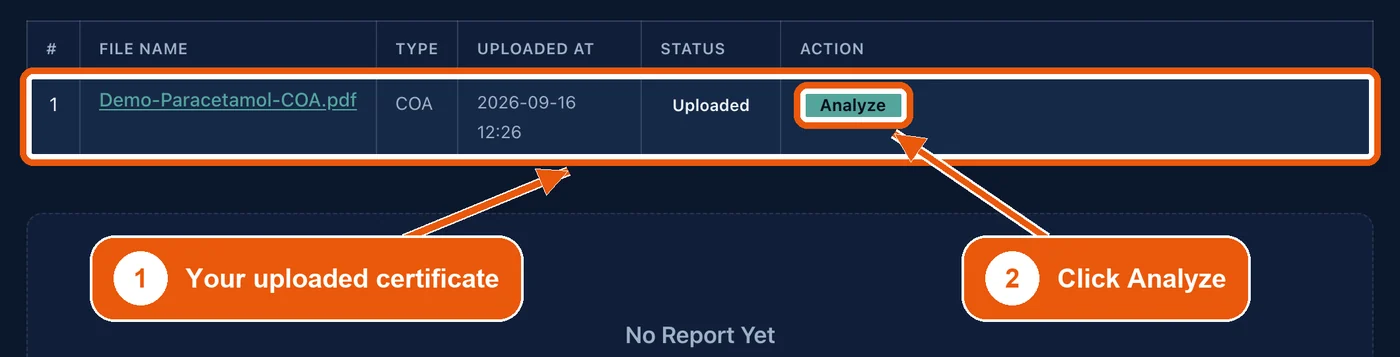
Click Go to Dashboard; your certificate is in the list. Click Analyze beside it. A typical certificate takes minutes rather than hours; keep the page open while it runs.
Step 4. Read your report and download it
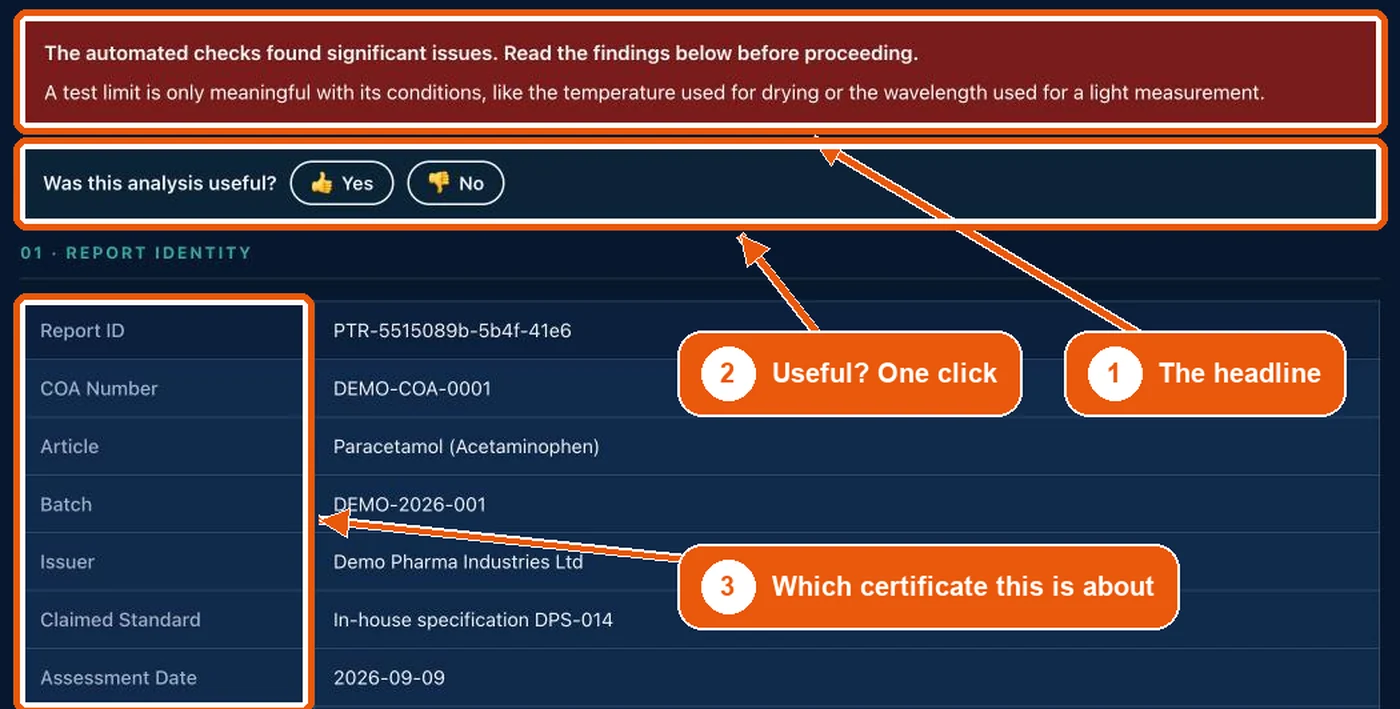
The report opens below the list. Read the headline first, then check the report is about the right certificate and batch.
Then go to 02 Final outcome, for where the certificate stands, and 06 Open findings, for what is missing or does not add up. Every finding ends with Closes it: what would close it, often evidence to ask the supplier for.
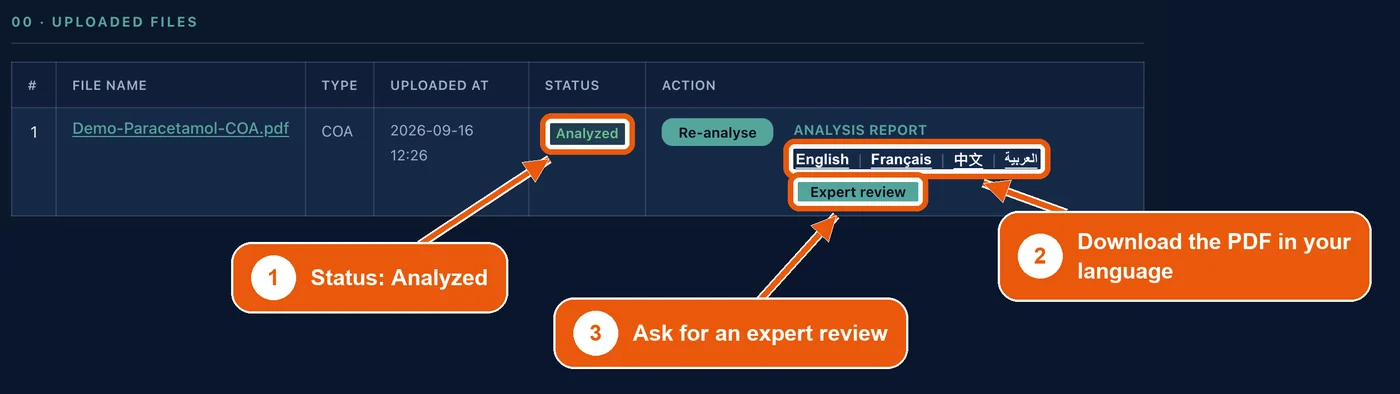
To keep it, click English under Analysis report to download the PDF, or Français, 中文 or العربية for a reference translation. The English report is the version of record.
Change the language
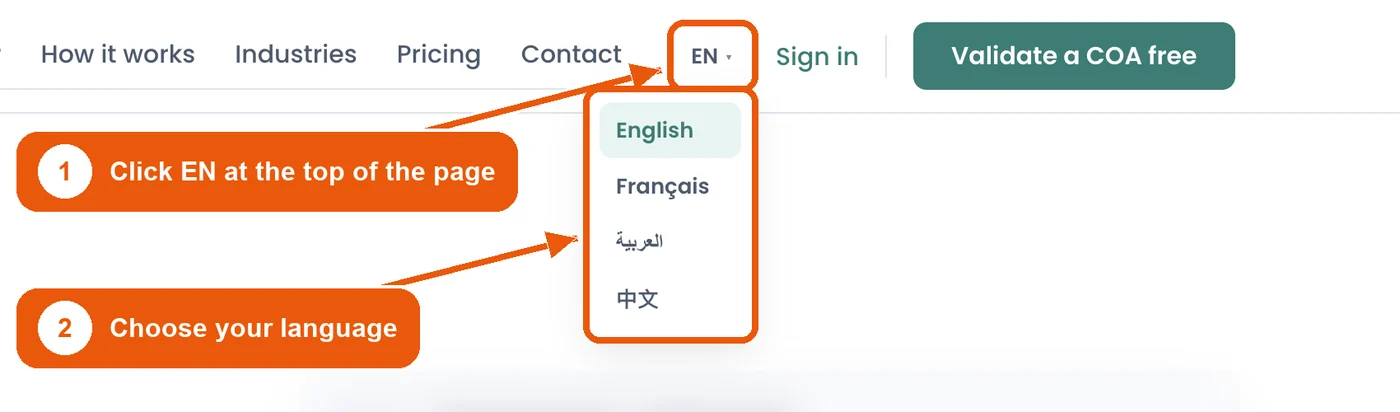
PharmaTrust works in English, French, Arabic and Chinese. Click EN at the top of the home page, or of any screen once you are signed in, and choose Français, العربية or 中文. The main website pages and your dashboard switch together; your account and documents stay the same. Guides like this one are in English.
Tell us what you think
Under every report, tap Yes or No beside Was this analysis useful? If you tap No, a box asks what was wrong or missing.
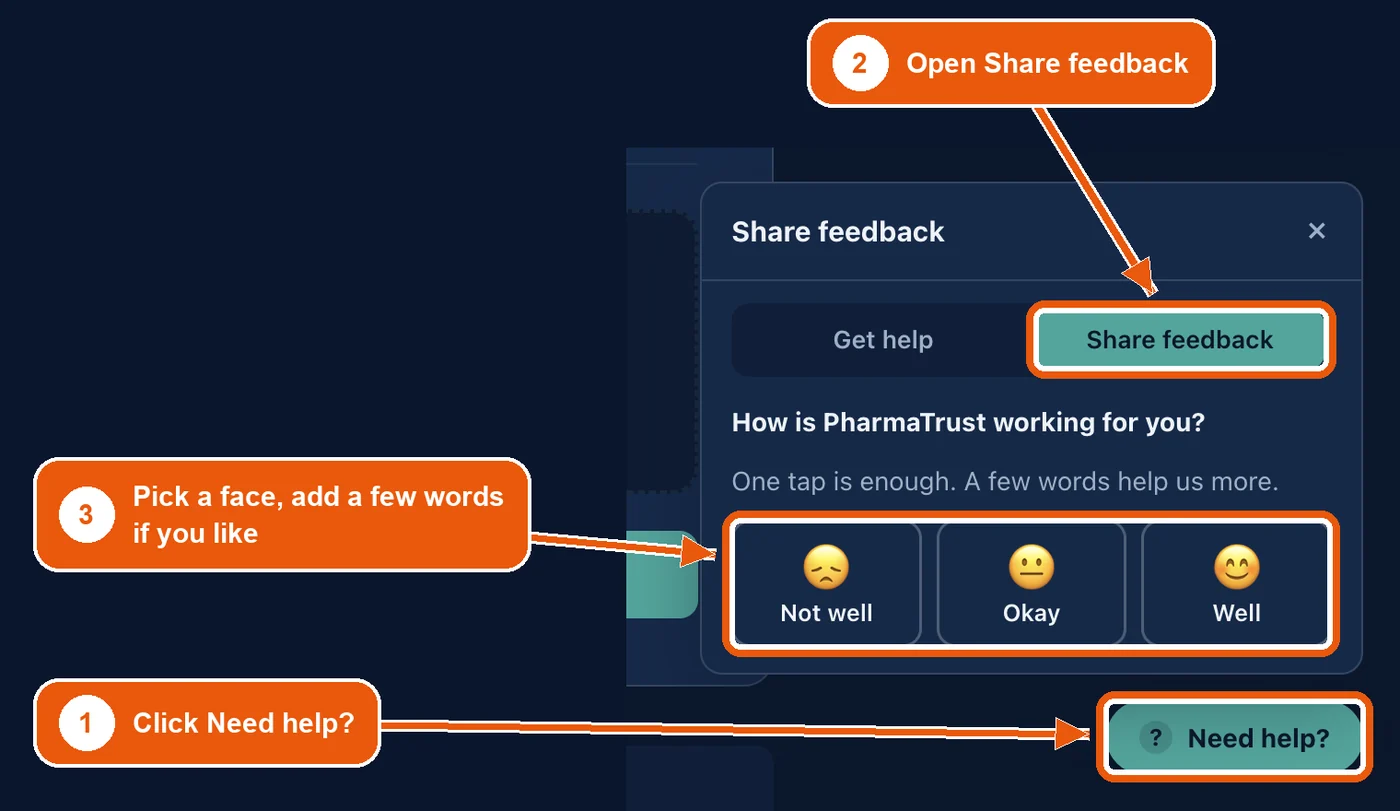
When you are signed in, click Need help? at the bottom right, open Share feedback and pick a face. A few words help us more, and every note is read by the team. Get help, in the same panel, is for questions and problems.

Optional: ask for an expert review
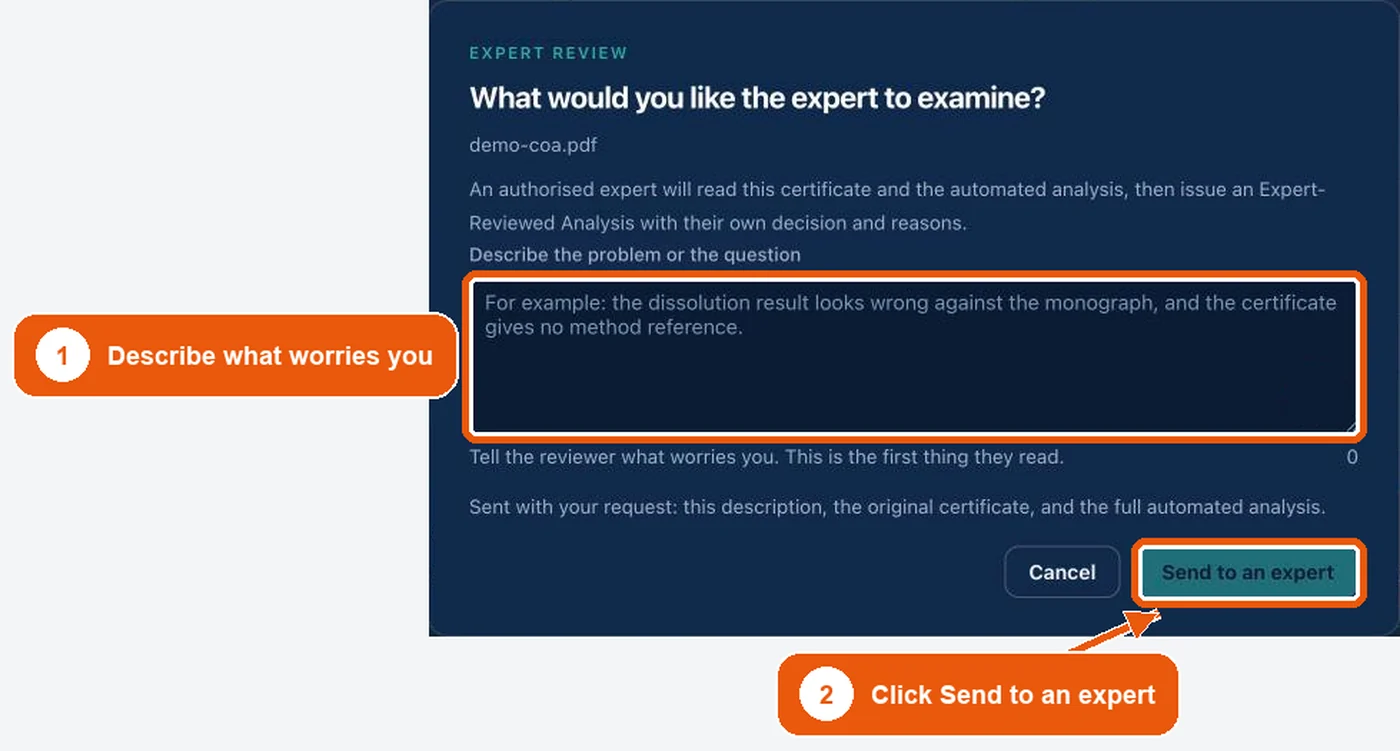
Expert review is included in the paid plans. Click Expert review beside the file, describe what worries you and click Send to an expert. An authorised expert issues an Expert-Reviewed Analysis with their own decision and reasons, within two business days.
If something goes wrong
Most problems have a short fix.
- Allowance used up: the dashboard says so, and Upgrade plan, in the bar at the top, shows the paid options. The free allowance resets on the date shown there.
- The certificate could not be read: upload the original PDF if you have it, or retake the photo flat, in good light and in focus, then click Analyze again.
- Anything else: click Need help?, then Get help, and quote the document name.
What the report is, and what it is not
The report analyses a document, not a medicine. A perfect certificate can accompany a bad product, so a report with no open findings is a well-documented certificate, not a tested batch.
PharmaTrust supports qualified decision-making. It does not replace the responsible pharmaceutical or regulatory professional, does not certify compliance and does not grant regulatory approval.
Sources
- Sample report: a complete Automated Analysis of a synthetic certificate, PharmaTrust
- Plans and pricing, PharmaTrust
- Professional use notice, PharmaTrust
- Terms of Service, PharmaTrust
Les sources primaires sont citées de préférence aux résumés. Lorsqu'une source est sous licence (par exemple une monographie de pharmacopée), la référence est donnée et le texte n'est pas reproduit.
PharmaTrust Team
Rédigé et révisé par l'équipe PharmaTrust à partir des sources primaires citées ci-dessus. Les corrections sont publiées, jamais faites en silence.
Pourquoi nous l'avons créé →Vous avez repéré une erreur ou un chiffre plus récent ? Nous corrigeons sous une semaine : info@pharmatrust.tech.